“Visual Composer Shortcode Viewer” Documentation by “wptpnet” v1.5
“Visual Composer Shortcode Viewer”
Created: 24/09/2015
By: wptpnet
Email: wptpnet@gmail.com
Thank you for purchasing my plugin. If you have any questions that are beyond the scope of this help file, please feel free to email via my user page contact form here. Thanks so much!
Table of Contents
A) Included Files - top
visual-composer-shortcode-viewer folder represents the plugin itself and contains all necessary files for this plugin:
- img folder
- code-mirror folder
- jquery-ui folder
- script.min.js
- style.css
- visual-composer-shortcode-viewer.php
B) Installation - top
- Install the plugin .zip from the Plugins -> Add New -> Upload
- Activate the plugin through the 'Plugins' menu in WordPress
- Visit Visual Composer editor to get started.
C) How to use - top
After Shortcode Viewer is installed and activated, you should see Shortcode view "{}" button when you place a mouse pointer over the top of the Visual Composer row, column or element:
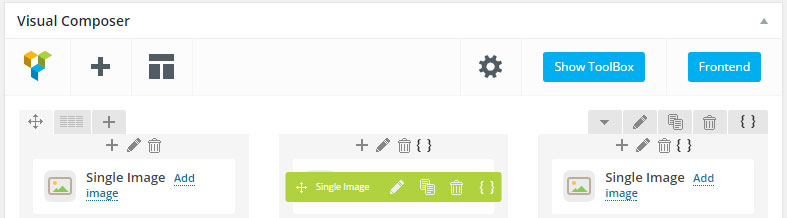
Click any "{}" button to load shortcode and open Shortcode Viewer dialog.
Shortcode Viewer dialog includes 2 tabs:
- Shortcode Json.
- Shortcode Text.
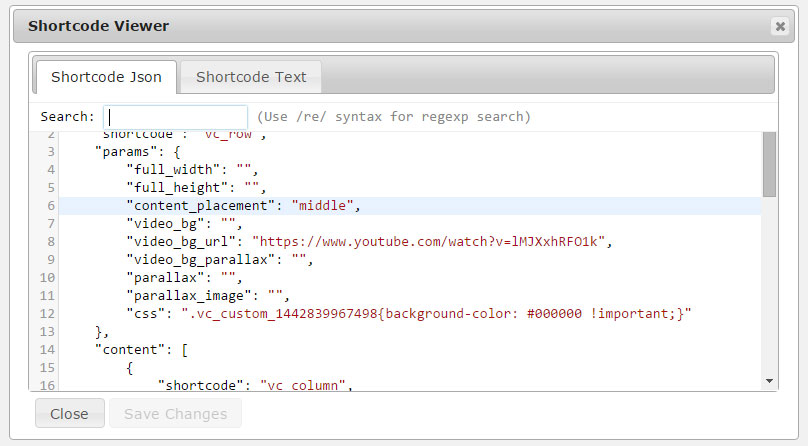
Also, you can:
- View shortcode in text.
- View shortcode with Json format.
- Edit and save changes shortcode with Json format.
For Backend mode
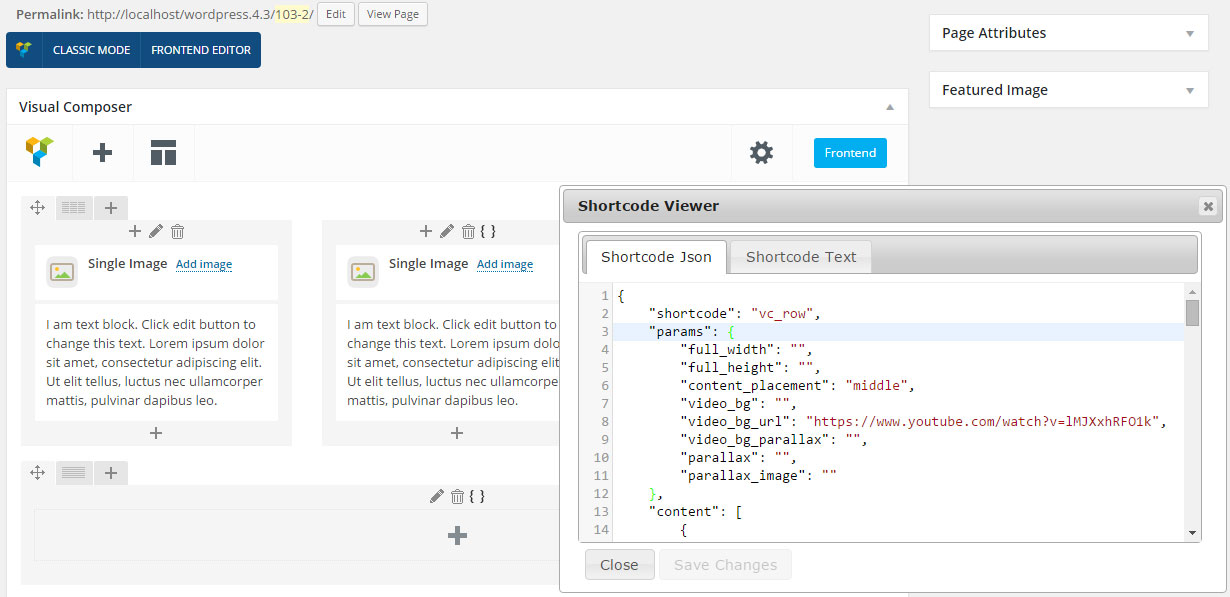
For Frontend mode
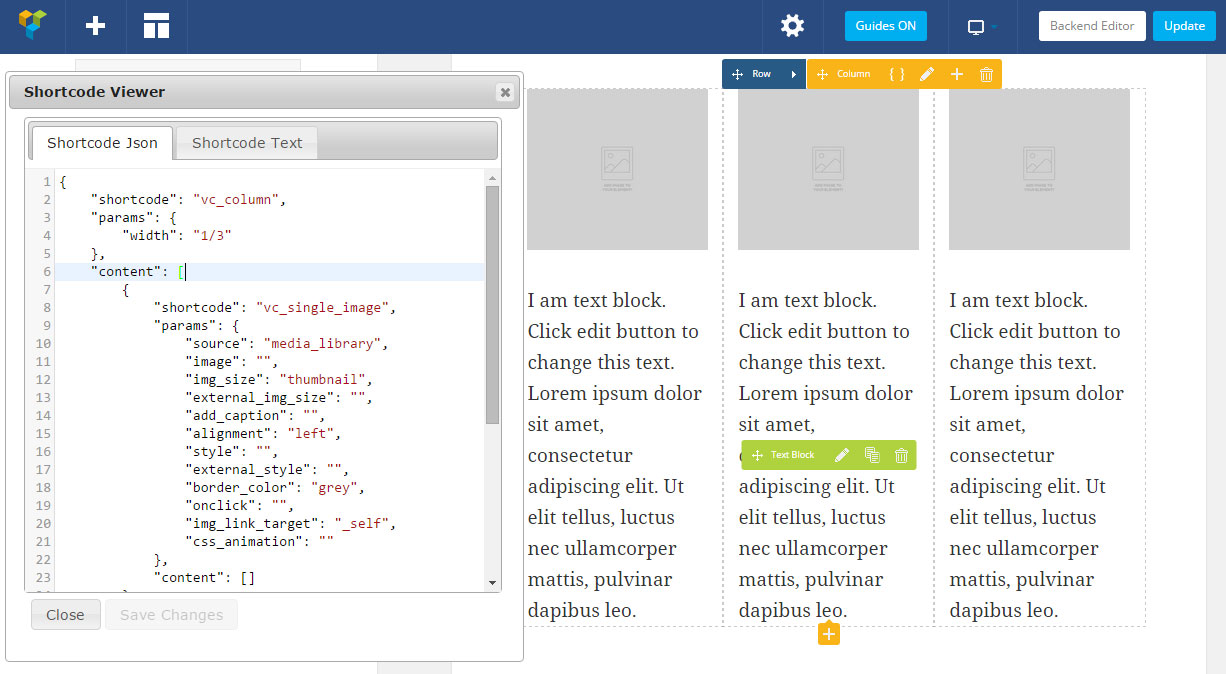
Syntax highlighter (since version 1.2)
- Json highlighter.
- Line number.
- Line wrapper.
- Match Brackets.
- Automatically close Brackets.
Search/Replace function (since version 1.2)
- Ctrl-F / Cmd-F: Start searching
- Ctrl-G / Cmd-G: Find next
- Shift-Ctrl-G / Shift-Cmd-G: Find previous
- Shift-Ctrl-F / Cmd-Option-F: Replace
- Shift-Ctrl-R / Shift-Cmd-Option-F: Replace all
- Alt-F: Persistent search (dialog doesn't autoclose, enter to find next, shift-enter to find previous)
D) Credit - top
- Jquery ui
- Code mirror
Once again, thank you so much for purchasing this plugin.
wptpnet